|
|
|
|
|
|
Core Temp 1.20.1:
Download
SHA-256: 26E9A2B20608F00F43A44D0F7FA57E70A832087C3D4A9AA1D8DC73078D9B5606
MD5: 7EDD792D56093EFE9B7AD08FE3DCAF13
|
|
|
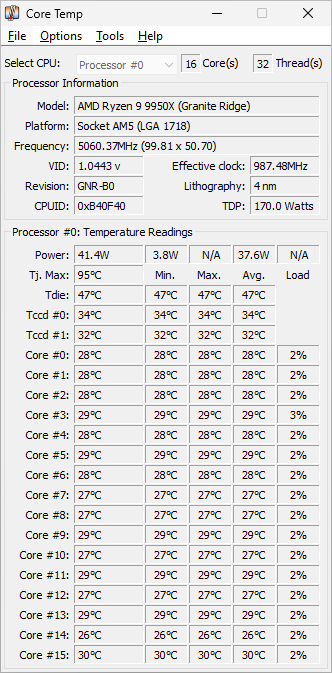 Core Temp is a small Windows utility that answers one question well: how hot is each core of your processor right now? Rather than quoting a single figure measured somewhere near the socket, it queries the sensor built into the silicon itself, so a busy core and an idle one are shown for what they are.
It runs on Windows 11, Windows 10 and earlier releases, installs in seconds and then stays out of the way in the notification area. Because the reading comes from the processor and not from the board, the same chip reports comparable values wherever it is installed.
Readings update live, so you can watch the effect of a game, a render or a virus scan as it happens, and compare a quiet desktop with a machine under full load.
New here? Download Core Temp and follow the install steps, then read how to use Core Temp to make sense of the main window. If you only want to check your CPU temperature once, that guide covers the quickest routes. To interpret a reading, see the CPU temperature guide. Platform notes are on the Windows 11 and Windows 10 pages, and anything that misbehaves is covered under troubleshooting.
Per-core readings, straight from the processor
Intel, AMD and VIA all build a DTS (Digital Thermal Sensor) into their chips. It sits on the die next to the hottest circuitry, responds far faster than a board-mounted sensor and reports each core separately — which is exactly the detail a single averaged number throws away. Core Temp reads it directly, so results do not depend on which motherboard the chip is plugged into (how does it work?).
Every recent x86 processor from those three vendors supports it; the full list of supported processors is published separately.
Small, configurable and open to other software
Nothing has to be configured before the first reading appears, yet almost everything can be: which sensors reach the taskbar and in what colours, Celsius or Fahrenheit, how often the sensor is polled, logging to a file, and an overheat action that fires when a core crosses a limit you set.
Readings are also published to other programs through a plug-in interface, which is how the desktop gadget and third-party tools show the same values — the existing plug-ins live on the add-ons page, and the developer page documents the interface if you want to build your own.
|
|
|
What you need to run Core Temp
Operating System: Microsoft Windows 11, 10, 8/8.1, 7, XP, 2025 Server, 2022 Server, 2019 Server, 2016 Server, 2012 Server, 2008 Server, 2003 Server.
Processor: Intel, AMD or VIA x86 based processor.
|
|
|
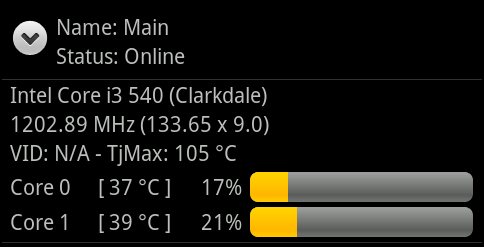
Core Temp goes mobile
Want to keep an eye on a machine while you are away from it? If you carry an Android or Windows Phone handset, the companion app reports what Core Temp sees on the PC back to your phone. The Core Temp Monitor thread has the details and the current build.
|
|
|

Desktop gadget and Media Center add-on
The rebuilt Core Temp Gadget for Windows 7 and Vista puts the same readings on the desktop sidebar, with a graph of processor load or temperature alongside memory use. Values are colour coded and the thresholds are yours to set in the Options screen; the gadget can be resized, and the descriptive text above the figures can be switched off if you prefer a compact look.
Core Temp Gadget and CoreTempMC are both on the Add Ons page.
CoreTempMC brings the readings into the Windows Media Center interface on Windows 7 and Vista, so the temperatures — and memory utilisation — can be checked from the couch with a remote rather than at the keyboard.
|
|
|
Version 1.20.1 - 2nd May, 2026
- Fix no core temps displayed or updated after reboot/sleep on Ryzen processors.
- Fix "Not responding" issue, during or after start of program.
- Fix TjMax reporting in Fahrenheit to shared memory and plugins.
Version 1.20 - 4th April, 2026
- Add new notification tray configuration. It now allows you to show/hide any of the sensors that are available. This change means that existing color configs will be reset.
- Add a battery status indicator for the notification area.
- Add updated Mini-Mode.
- Add zoom setting for the main UI (in Options --> Settings --> Display)
- Add show Processor model name in a tool-tip when the name is too long to fit in the model field.
- Fix incorrect readings or missing readings or incorrectly mapped CPUs/cores on some Intel platforms.
- Fix driver security vulnerability.
- Fix BSOD on machines with Kernel-mode Hardware-enforced Stack Protection enabled.
- Fix BCLK detection on some Intel gen 10 and 11 systems.
- Fix BCLK detection in some situations on AMD K8 chips.
- Fix core temperature detection on some AMD Matisse, Rembrandt and Strix APUs.
- Fix TjMax for some Zen1 CPUs
- Fix Min/Max/Avg fields not recording changes while the Core Temp window is minimized
- Fix platform detection of LGA 2066 Kaby Lake processors.
- Fix temperature reporting on AMD AM2 CPUs (G-revision)
- Fix some AMD K8 (G-revision) CPU not detected on startup message
- Fix model name detection for K8 through K14 generations
- Fix Core Temp randomly crashing (caused by 3rd party SW)
- Fix Core Temp crash on start on some AMD Ryzens with a single CCD.
- Fix Core Temp starting at the wrong window position in certain situations.
- Change G15 applet to support displaying more than 8 temperatures, use the 3rd button to scroll to the next set of temps. And fix spacing for a less twitchy UI.
- Change ini file to correctly save each setting under its section (this may lead to some settings being reset to defaults)
|
|
Full change
log
|
Supported CPU
list
|
|
 Facebook page